Open Invoices in the sidebar and press New Invoice.
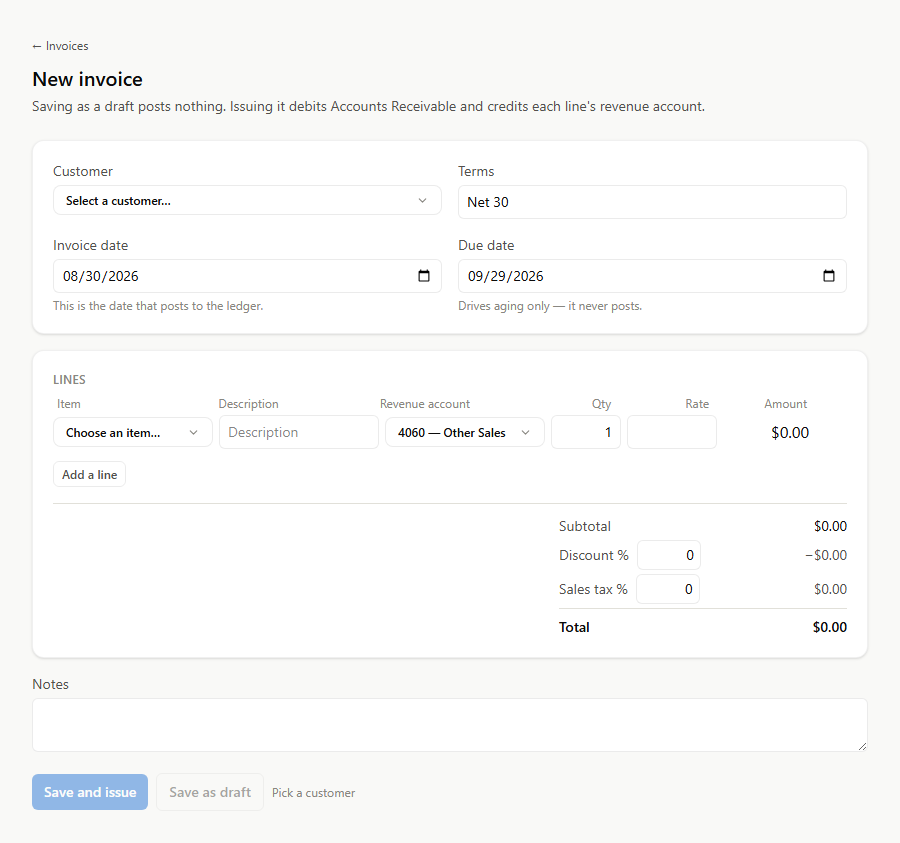
Filling it in
Customer — required. If they are not in the list yet, add them first; see How to add a customer.
Invoice date and Due date. The due date is prefilled from the customer's payment terms if you gave them any, which is the payoff for filling that field in once.
Terms carries onto the invoice as text, so the customer can see what was agreed.
Lines — pick an Item and its description, quantity and rate fill themselves in from the item record. You can override any of them for this invoice without changing the item. Amount is quantity × rate, and adding more lines is one button.
Notes appear on the invoice itself.
Save as draft keeps it editable and posts nothing to your books.
What happens in your books
This is the part worth understanding, because it is where an invoice differs from getting paid.
Issuing an invoice records that somebody owes you money:
| Account | Debit | Credit |
|---|---|---|
| Accounts Receivable | total | |
| Income | total |
Revenue is recognized now, at the point you earned it — not when the cash arrives. Your Income Statement counts the sale this period, and your Balance Sheet shows the amount outstanding under Accounts Receivable.
When they pay, no revenue is recorded, because it already was:
| Account | Debit | Credit |
|---|---|---|
| Bank | amount | |
| Accounts Receivable | amount |
The receivable clears and the cash arrives. Recording revenue again here would count the sale twice — which is why "record a payment" and "raise an invoice" are separate actions and one does not imply the other.
Draft, issued, paid
A draft is not in your books yet and can be changed freely.
Once issued, it has posted, so it is no longer freely editable — the app keeps the audit trail rather than letting a posted document change quietly underneath the reports built from it.
To cancel an issued invoice, void it. That posts a reversing entry rather than deleting anything, so both the original and its cancellation stay visible. Deleting would silently change a period your reports have already described.
Checking what is outstanding
The A/R Aging report lists every unpaid invoice grouped by how overdue it is. Its total ties to the Accounts Receivable balance on your Balance Sheet — and when those two disagree, that is a real signal worth chasing rather than a rounding quirk.